
Business Intelligence (BI) tools collect, store and process large volumes of data from different sources, providing valuable information on models and trends. Looker and Power BI are among the market leaders dedicated to these tools, helping companies to stimulate growth and improve operations. Although both serve the same purpose, there are some differences between them in terms of user interface, data security, display options, collaboration functionality, and more that may make our decision work in favor of one or the other. In this article, we are therefore going to take a closer look at them and we will try to delve into every aspect that can help you choose the BI tool that best suits your needs.
.png)
The global Business Intelligence (BI) market, valued at 27.11 billion dollars in 2022, is growing strongly and is expected to reach 54.27 billion dollars by 2030.
This accelerated growth of the sector highlights the need, for companies, to choose the most suitable BI platform among the multitude of tools available for different purposes: from operational needs to inventory management, from improving the customer experience to extracting value from the Internet of Things (IoT).
Among the many options, Looker and Power BI stand out as two of the main players in the BI solutions market. Both are powerful tools, but they differ greatly in how they approach data analysis and visualization.
Faced with these two giants, it's natural to ask: “Which of these tools is the most suitable for my needs?”
To answer this question, in the next sections we will analyze in detail the technical aspects of both, their differences and we will try to compare them to understand which of the two is the right tool for us. Let's not waste any more time.

Before starting with the actual confrontation, it is appropriate to briefly introduce the two contenders for a moment to try to better understand what they are and what their offer is.
Microsoft Power BI is a Business Intelligence platform developed by Microsoft that allows you to connect, transform, analyze and visualize data from a wide range of sources.
Through interactive dashboards, dynamic reports and advanced analysis capabilities, Power BI allows users - even without in-depth technical skills - to obtain significant insights and make decisions based on concrete data.
The platform is designed to promote collaboration and information sharing within organizations, making data analysis accessible, flexible and scalable.
Its main strength is its native integration with the Microsoft software ecosystem. Users can connect Power BI to Outlook, Excel, PowerPoint, SharePoint, Teams, Dynamics 365, Azure Machine Learning and Azure Synapse Analytics with extreme ease. The platform also supports hundreds of integrations with third-party tools, including Slack, Dropbox, Salesforce, and BigQuery.
Power BI also stands out for being a highly accessible and easy-to-use tool, suitable for both beginners and experts. The most recent updates have introduced AI-based features, such as integration with Microsoft Copilot and the use of natural language queries.
The most recent version includes improved data governance features, which help maintain compliance with applicable laws, regulations, and standards.
Among its main strengths we can mention:
A fun (as true) commonplace sees the nomenclature of Microsoft products as extremely confusing, but this time it seems that the Redmond house has found a challenger.
In fact, Looker Studio has a rather complicated story, and if you've ever found yourself talking about Looker realizing mid-conversation that no one is talking about the same thing, it's not as rare as you might think.
The point is this: they actually exist two Looker.
One is LookML Looker Core, the real analytical engine that has existed for some time. The other one is Looker Studio, formerly known as Google Data Studio, renamed after the acquisition of Looker by Google. This overlap in names has generated quite a bit of confusion, especially among those who are new to the world of data analysis and naively refer to Looker Studio as “Looker”, ignoring the existence of LookML Looker.
And just when it seemed that the situation could not get any further complicated, Google also introduced Looker Studio Pro, the 'premium' version of Looker Studio.
That said, in this article, we will focus primarily on comparing Looker Studio and Power BI.
Looker Studio can now be considered a brand comparable to Power BI. Like the latter, it's an intuitive web-based tool that transforms raw data into visually engaging and interactive reports. Users can quickly create informational dashboards through a drag-and-drop interface, even without any technical expertise.
Among its most characteristic features, we can mention:
Dev4Side Software specializes in creating customized reports through Microsoft Power BI, transforming complex data into intuitive dashboards and reports to support informed business decisions.
Operating vertically across the entire Microsoft Power Platform ecosystem, we have developed excellent expertise in Power BI, allowing us to offer business intelligence solutions that highlight critical insights and promote operational efficiency.
Contact us to transform business information into concrete actions.
Ok, now that we have a clearer idea of what the two services are and what they offer, the time has come to put them next to each other and compare them on the main points that define a Business Intelligence solution worthy of the name.
The criteria are respectively:
Let's not waste any more time and let's go.
Working with Power BI is natural and intuitive for those with skills in data analysis and manipulation. The platform shows a preview of the data, which makes it easier to spot errors and resolve them quickly.
What most teams appreciate (but sometimes hate) when creating a dashboard in Power BI are the endless customization options. On the one hand, it is good to have greater control over the graphic and functional aspect of the reports, but on the other hand, it can easily become overwhelming, especially for beginners, just scrolling through the various design panels.
Looker Studio, on the other hand, has a simple layout and basic data visualization options, making it more suitable for beginners. However, because Looker Studio doesn't show a preview of the data — or how they are structured and formatted — before the visualization, it can be difficult to identify and correct errors, especially when working with multiple data sources.
So if you want more control over your data, you'll need to process it first in Google Sheets. Once you're happy with the result, you can import them into Looker Studio. This process, however, can get rather tedious in a short time.
Both Looker Studio and Power BI offer different customization options — basic charts and diagrams, custom visualizations, and templates — that allow you to create the reports you need.
When customizing your reports, you'll find numerous basic charts and graphs directly in the Looker Studio's dashboard. You can also apply different themes and layouts to make the dashboard consistent with your brand's visual identity.
First-time users who have just started creating dashboards can explore the report gallery and choose a free template.
Similar to Looker Studio, Power BI also offers basic charts and diagrams — such as scorecards, time series, bars, maps, etc. — and allows the application of customized themes and layouts to dashboards.
In addition to standard charts, Microsoft has recently invested heavily in custom visualizations available through AppSource. This opens up a wide range of possibilities for users who want to make their reports more engaging and narrative.
Essentially, Looker is a good option for simple charts and visualizations, but it tends to show limitations when needs become more complex. Power BI, on the other hand, proves to be much more versatile from the point of view of personalization and represents a more complete option for advanced users and for those who want to go beyond basic representations.

Both Looker Studio and Power BI support connections to different data sources, both through native connectors and third-party connectors.
There are many ways to import marketing data into Power BI. It supports direct connectivity to numerous data sources, including Microsoft products such as Azure SQL Database and Excel. In addition, it connects to many third-party databases and online services. The Power BI ecosystem includes hundreds of third-party connectors (more than 1,400).
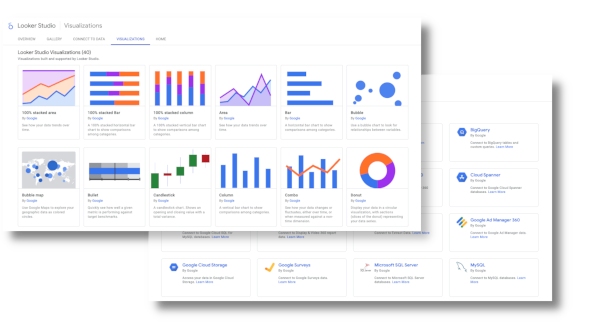
With Looker Studio, you can import free data from Google-supported platforms — Google Sheets, BigQuery, Google Analytics, Google Ads, etc. — directly into your dashboards. If you want to obtain data from external sources, you can use third-party connectors. Looker Studio has a partner community that supports hundreds of data sources.
In this aspect, the two services are therefore equivalent and the choice is simply on which basic supported platforms are preferred.
Power BI has more advanced and powerful data transformation capabilities than Looker. One of the most popular features is DAX (Data Analysis Expressions), which allows users to create new data tables and complex calculations.
In addition, Power BI allows you to work on data structure and modeling. For example, you can use a star pattern to manage and organize data.
We can say that, to fully exploit the potential of Power BI, it is necessary to have a good understanding of data modeling and to know what you are doing. Working with DAX or a star scheme isn't exactly within the reach of a marketing team.
For this reason, in teams that use Power BI, it is often observed that there is a team dedicated to managing the data and the underlying work, so that the marketing team can focus on creating reports.
Looker Studio, on the other hand, is great if you simply want to analyze impressions, clicks and CTR of a single channel.
To combine data from multiple sources, Looker Studio offers a functionality of Data blending which allows you to combine up to five data sources. However, Looker Studio's data blending has some limitations, including:
Let's talk a bit about costs.
The basic version of Looker Studio is free — making it accessible even to small businesses. Looker Studio also offers a Pro version that includes team workspaces (with more granular access controls) and enterprise customer support through Google Cloud Customer Care. In addition, if you use third-party connectors to import data into Looker Studio, you still have to pay.
Although there is a free version of Power BI with data connectivity for simple data sets, report sharing, collaboration, and more advanced functionality, this requires a paid subscription starting at about $10 per user per month.
Unlike Looker, Power BI Desktop lets you to connect to third-party connectors and pull data without purchasing any license. Additionally, a potential downside is that the report remains “local” that is that it is saved in a .pbix file and can only be opened and used through Power BI. When you want to publish the report online, a paid license comes into play, instead if your only goal is to make it accessible on the Internet without controls and without user management, a license is not required.
In this particular context, Looker has a slight margin of advantage over the Microsoft Business Intelligence solution, but having said that, let's move on to the final verdict.

Finally we get to the heart of the matter: which of the two to choose?
As always, the choice between Looker Studio and Microsoft Power BI depends on the specific needs of your organization, your budget, the technological ecosystem already in use and the level of technical expertise available. Both tools are excellent, but they stand out in very, very different settings.
Looker Studio excels in its simplicity, convenience and smooth integration with the Google ecosystem. It's the ideal solution for businesses with simple reporting needs and for teams that prioritize ease of use over advanced functionality.
Power BI On the other hand, it is the best choice for organizations that need advanced analysis, extensive possibilities for data customization, and complex modeling capabilities. Its versatility, integration with Microsoft tools, and scalability make it a solid solution for companies that manage large volumes of data and detailed reports.
For your convenience, we have summarized all the main criteria in the convenient table below:
But what is our personal opinion?
As a software house operating within the Microsoft system, we can only recommend Power BI (while recognizing the merits of Google's BI solution).
The Microsoft Business Analytics platform is a solution that, net of slightly higher costs and a slightly steeper learning curve, wins over Looker for aspects such as versatility, scalability and variety of options and customizations that make it a more attractive choice for all those companies that intend to have in their digital toolset a tool capable of growing with the needs of their company.
There's a reason why the Business Intelligence market is growing so fast: data is gold waiting to be extracted, and sitting on it doing nothing is probably the best way to miss opportunities as valuable as your revenue.
This is why it is important to find the right tool to finally be able to use them properly and the choice of this tool should not be taken lightly, but carefully observed and studied in order to find the most suitable solution not only for the current moment but also for the near future of your business.
So, if Looker represents an excellent entry-level solution for all those small businesses that need a convenient and fast tool to set up a business intelligence base as quickly as possible, Power BI is (in our opinion) the platform that can best accompany your company in discovering its data, growing and maturing together with it.
1) Looker, Looker Studio and Looker Studio Pro: what's the difference?
Looker (often referred to as “Looker Core”) is Google Cloud’s BI platform, also based on LookML; Looker Studio is the web tool for creating reports and dashboards; Looker Studio Pro adds “enterprise” and administrative features designed for teams and governance.
2) What does Looker Studio Pro add compared to the free version?
In short: more control for managing content and access at a team scale (e.g., workspaces) and linking to Google Cloud projects, plus support and admin capabilities.
3) Which one is easier to use for beginners?
In general, Looker Studio is more straightforward (web reporting with “drag & drop”); Power BI is very feature-rich and can feel more demanding once you get into data modeling, measures, and optimizations (DAX/model). (Practical assessment based on typical use cases.)
4) What is DAX and when is it needed in Power BI?
DAX is the formula language used in Power BI to define calculations (measures, etc.) and work with the data model; it becomes central when moving from “simple” reports to more advanced analysis.
5) Does Looker Studio support 'UNION' like in SQL?
Blending in Looker Studio is described as data “derived from joining fields across sources” (so it’s conceptually different from a vertical SQL UNION). If you need UNION, it’s usually best to do it upstream (warehouse/SQL/ETL) and then connect to the resulting source.
The Modern AI Apps team responds swiftly to IT needs where software development is the core component, including solutions that integrate artificial intelligence. The technical staff is trained specifically in delivering software projects based on Microsoft technology stacks and has expertise in managing both agile and long-term projects.


